X POS is a modern, full-featured Point of Sale application built on top of the Frappe/ERPNext framework. It provides a fast, responsive, and intuitive retail experience with support for both online (web browser / PWA) and offline (Electron desktop) modes.
X POS is designed for retail businesses that need a powerful POS system tightly integrated with ERPNext's accounting, inventory, and CRM modules.
Key Highlights
- Modern Interface — Built with Vue 3, Tailwind CSS, and Shadcn UI components for a clean, responsive design
- Works Everywhere — Runs in any web browser, as a Progressive Web App (PWA), or as a native desktop application via Electron
- Offline Capable — Full offline mode with local MariaDB database and automatic sync when connectivity is restored (Not production ready).
- ERPNext Integrated — Directly creates Sales Invoices (or POS Invoices), manages stock, handles accounting, and syncs with your ERPNext instance in real-time
- Keyboard-First Workflow — Over 35 keyboard shortcuts for lightning-fast operations without touching the mouse
- Multi-Language Support — Full translation system with RTL (Right-to-Left) layout support
- Barcode Ready — Hardware barcode scanner support, mobile camera scanning, and barcode label printing
- Comprehensive POS Features — Customer management, loyalty programs, offers/coupons, returns, split payments, cash management, shift reconciliation, and more
Architecture Overview
X POS consists of two main parts:
Frontend (Vue 3 Application)
The user interface is a single-page application (SPA) built with:
- Vue 3 with TypeScript for type safety
- Pinia for centralized state management
- Tailwind CSS for utility-first styling
- Shadcn Vue for accessible UI components
- Vite for fast development and optimized builds
- PWA service worker for offline caching
- Electron shell for native desktop deployment
Backend (Frappe Application)
The server side is a standard Frappe application providing:
- Whitelisted APIs for all POS operations
- Custom Doctypes for POS-specific data (Opening/Closing Shifts, Cash Movements, Offers, Coupons)
- Custom Fields on POS Profile for extensive configuration
- Print Formats for thermal receipt printing
- Background Jobs for async invoice submission
Deployment Modes
1. Web Browser / PWA Mode
Access X POS through any modern web browser at https://yoursite.com/xpos. Install it as a PWA for an app-like experience with offline capabilities.
2. Electron Desktop Mode
Install X POS as a native desktop application with:
- Hub Mode — Main server that syncs with ERPNext and serves data to client terminals
- Till Mode — Client POS terminal that connects to a Hub for data
- Local MariaDB database for offline operation
- Automatic background synchronization
Navigation Structure
X POS provides these main sections accessible via the sidebar and bottom navigation:
| Section | Description |
|---|---|
| POS | Main sales interface for processing transactions |
| Orders | View and manage past invoices and orders |
| Purchase Order | Create and manage purchase orders for suppliers |
| Purchase Invoice | Record purchase invoices from suppliers |
| Stock Receiving | Receive and verify incoming stock shipments |
| Expenses | Track cash expenses during a shift |
| Bank Drops | Record cash deposits to bank accounts |
| Barcode Printer | Generate and print barcode labels for items |
| Settings | Configure server, database, and sync options (Electron only) |
Getting Started
To begin using X POS:
- Open the application — Navigate to
/xposon your ERPNext site, or launch the desktop app - Log in — Enter your ERPNext username and password
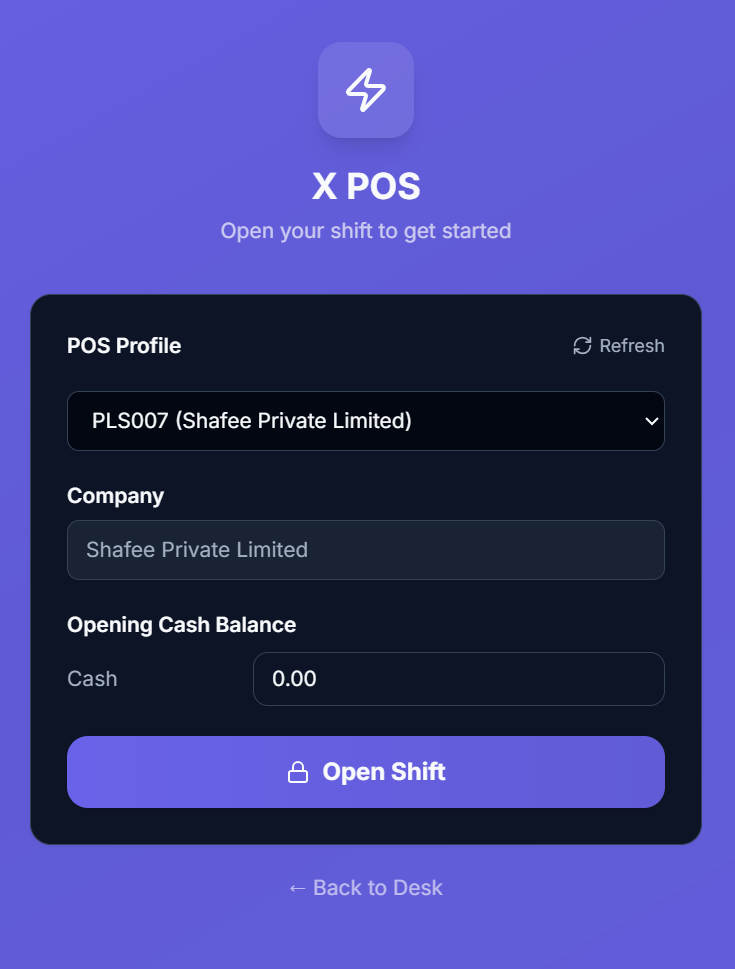
- Open a Shift — Select your POS Profile and enter opening cash balances
- Start Selling — Search items, add to cart, process payments
- Close the Shift — Reconcile cash and close the register at end of day
The following pages cover each feature in complete detail.