Order History & Management
The Orders view provides a complete history of all transactions processed during the current shift (or across shifts, depending on configuration). You can search, filter, view details, print receipts, and initiate returns from this screen.
Accessing Orders
Navigate to the Orders view by:
- Clicking "Orders" in the Navbar or Sidebar
- Pressing Alt+2
- Using Command Search (Ctrl + K → type "Orders")
Filters & Search
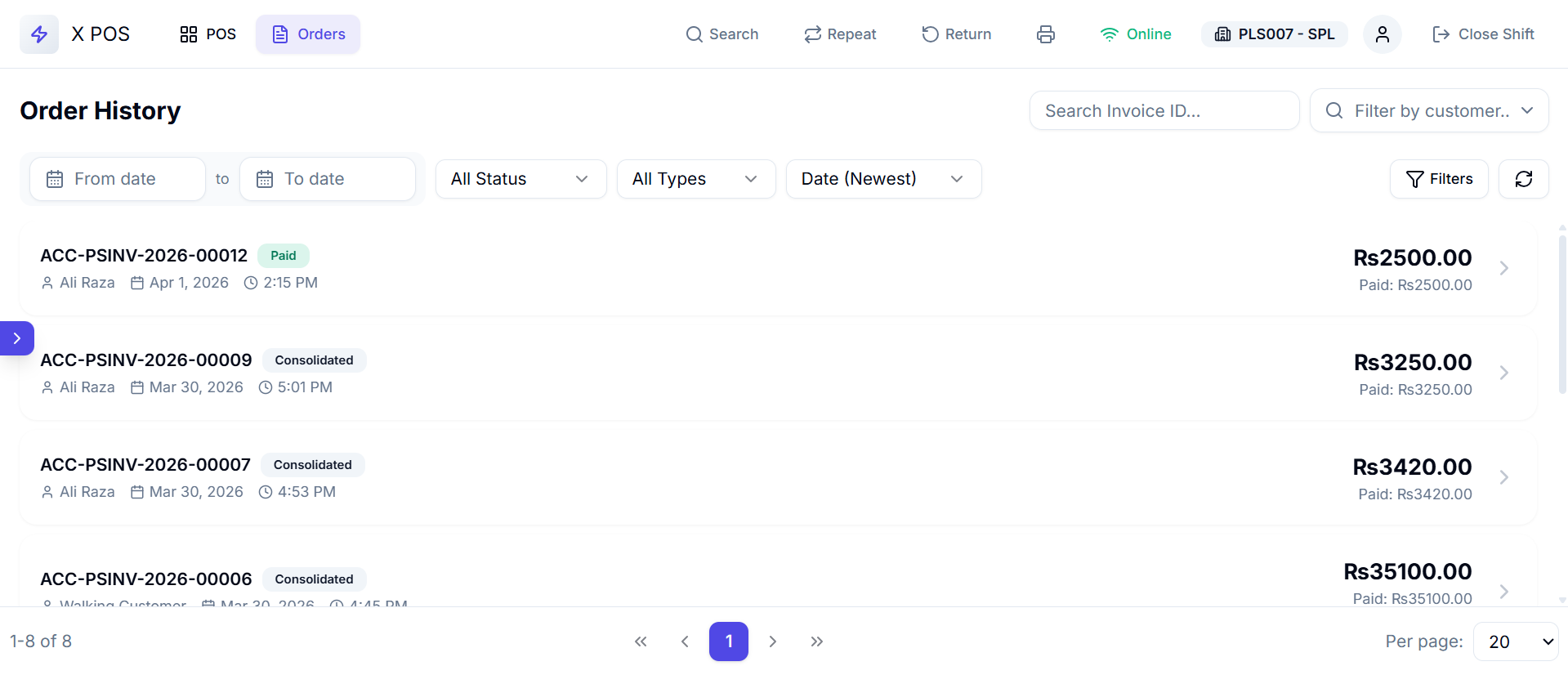
The Orders view provides multiple ways to find specific invoices:
Invoice ID Search
- Type an invoice number (e.g., "ACC-SINV-2024-001") in the search input
- Search is debounced (400ms) and uses a
LIKEmatch - Press Enter or wait for auto-search
Customer Filter
- Use the customer autocomplete dropdown to filter by customer
- Type to search customers, then select from results
- Clear the filter to show all customers
Date Range Filter
- From Date — Start of the date range
- To Date — End of the date range
- Both default to today's date
- Change dates to view historical orders
Status Filter
Filter orders by their payment/accounting status:
| Status | Badge Color | Description |
|---|---|---|
| All | — | Show all orders |
| Paid | 🟢 Green | Fully paid invoices |
| Unpaid | 🟡 Yellow | Invoices with outstanding balance |
| Overdue | 🔴 Red | Past-due unpaid invoices |
| Cancelled | ⚫ Gray | Cancelled invoices |
| Return | 🟠 Amber | Return/credit note invoices |
Order Mode Filter
- Normal — Show regular sales only
- Return — Show return invoices only
- All — Show both
Sort Order
- Default: Posting Date Descending (newest first)
- Can be changed to ascending order
Refresh Button
Click the refresh icon to reload orders with current filters. The button shows a spinning animation during loading.

Order Cards
Each order appears as a card showing key information at a glance:
| Element | Description |
|---|---|
| Invoice Name | Unique invoice ID (e.g., ACC-SINV-2024-001) |
| Status Badge | Color-coded status (Paid, Unpaid, Return, etc.) |
| Customer Name | Customer for this transaction |
| Posting Date & Time | When the invoice was created |
| Grand Total | Total amount |
| Paid Amount | Amount paid |
| Tax Amount | Total taxes (shown on mobile in abbreviated form) |
Click any order card to view its full details.

Order Detail View
Clicking an order opens a full detail modal with comprehensive invoice information organized in sections:
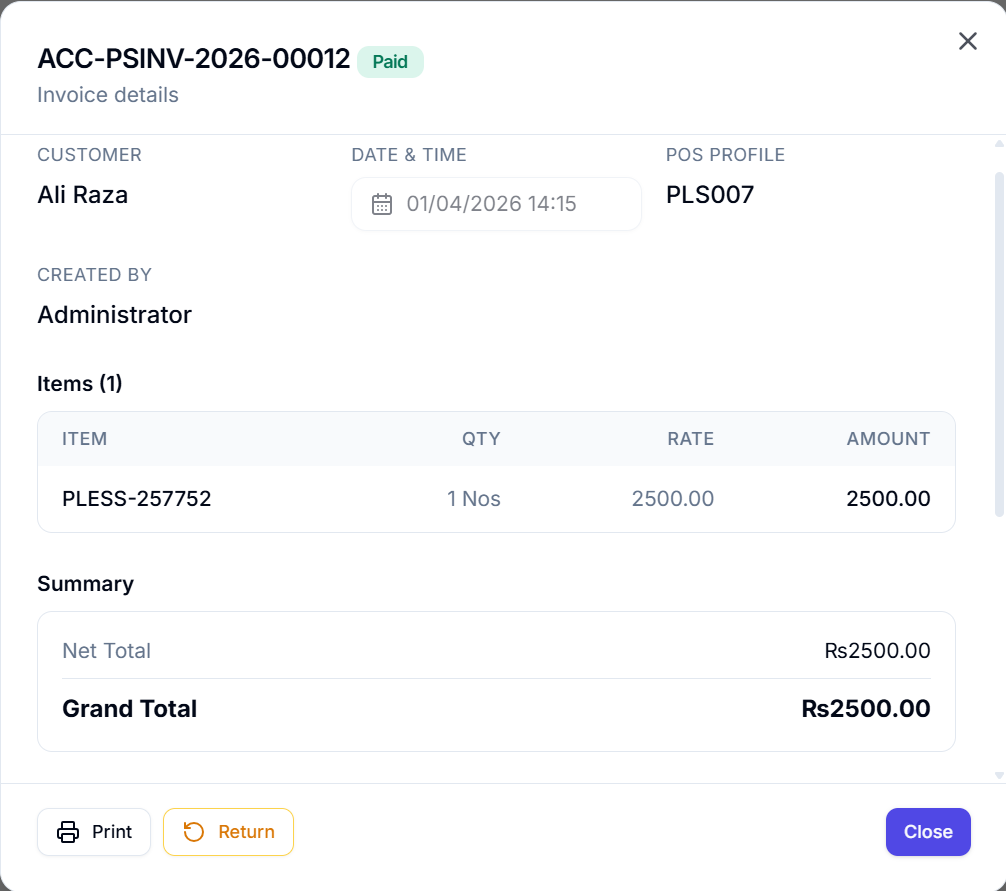
Header
- Invoice Number — Large text with the invoice ID
- Status Badge — Color-coded status indicator
Invoice Metadata
| Field | Description |
|---|---|
| Customer | Customer name |
| Date & Time | Posting date and formatted time (12-hour AM/PM) |
| POS Profile | The POS Profile used for this transaction |
| Created By | Username who created the invoice |
| Sales Partner | Assigned sales partner (if any) |
| Coupon Code | Applied coupon code (if any) |
Items Table
A table listing all invoice line items:
| Column | Description |
|---|---|
| Item Code | Product code |
| Qty | Quantity sold (negative for returns) |
| Rate | Per-unit price |
| Amount | Line total |
| Discount | Discount percentage or amount (if any) |
Financial Summary
| Line | Description |
|---|---|
| Net Total | Total before taxes |
| Taxes & Charges | Sum of all taxes |
| Discount | Overall discount amount or percentage |
| Loyalty Amount | Loyalty points redeemed (if any) |
| Grand Total | Final total |
Tax Breakdown
A detailed table showing each tax component:
| Column | Description |
|---|---|
| Description | Tax name/description |
| Rate | Tax rate percentage |
| Amount | Tax amount |
Payment Details
A table showing how the invoice was paid:
| Column | Description |
|---|---|
| Mode of Payment | Payment method (Cash, Card, etc.) |
| Amount | Amount paid with this method |
| Change Given | Change returned to customer (for cash overpayments) |
Loyalty Information
If the customer has a loyalty program:
- Loyalty Program — Program name
- Points Earned — Points earned from this transaction
- Points Redeemed — Points used as payment
- Loyalty Amount — Monetary value of redeemed points
Remarks
Any order notes or remarks associated with the invoice.
Order Actions
From the Order Detail modal, you can perform these actions:
Print Invoice
Click "Print" to open the invoice in a new browser window with the configured print format. The browser's print dialog triggers automatically.
Return from Order
Click "Return" to initiate a return against this specific invoice:
- The cart is cleared
- Return mode is activated with this invoice as reference
- The cart is populated with all returnable items (showing remaining returnable quantities)
- The customer is set from the original invoice
- You're redirected to the POS interface to process the return
Pagination
The Orders view uses server-side pagination for performance:
- Page Size — Configurable (default: 20 orders per page)
- Page Navigation — Previous/Next buttons at the bottom
- Total Count — Shows total number of matching orders
- Changing filters or search resets to page 1
Date & Time Formatting
- Dates are displayed in the locale-specific format
- Times are displayed in 12-hour AM/PM format (e.g., "2:30 PM")
- Numbers are formatted with fixed decimal precision
Repeat Invoice
X POS allows you to repeat a past invoice — loading the same customer and items into a new transaction.
How to Repeat an Invoice
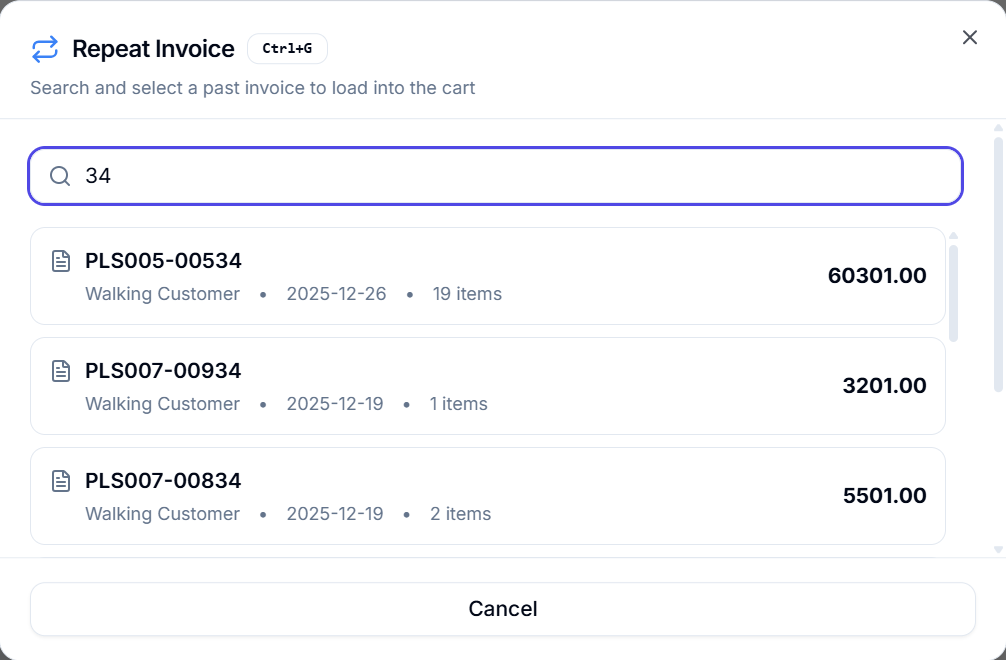
- Click the Repeat button (blue) in the Navbar, or press Ctrl + G
- The Repeat Invoice Dialog opens
- Search for the invoice by number or customer name (minimum 2 characters)
- A list of matching invoices appears showing:
- Invoice name with document icon
- Customer name
- Posting date
- Item count
- Grand total
- Click the "Load More" button if more results are available
- Click an invoice to repeat it
What Happens When You Repeat
When you select an invoice to repeat:
- The full invoice data is fetched from the server
- The current cart is cleared
- The customer from the original invoice is set
- All items are loaded into the cart with their original quantities and rates
- The POS interface is ready for the new transaction
- You can modify items, quantities, or customer before payment
This is useful for regular customers who frequently purchase the same items.