Purchase Orders & Stock Receiving
X POS includes a complete procurement module for creating purchase orders, receiving stock, and recording purchase invoices — all from within the POS interface.
Prerequisites
Enable purchase features in your POS Profile:
| Setting | Description |
|---|---|
| Allow Purchase Order | Enable the Purchase Order creation module |
| Allow Purchase Receipt | Enable stock receiving |
| Allow Create Purchase Suppliers | Allow creating new suppliers inline |
| Allow Create Purchase Items | Allow creating new items inline |
Purchase View (Main Purchasing Hub)
The Purchase View is a tabbed interface for managing the entire procurement workflow.
Accessing the Purchase View
- Click Purchase in the Sidebar
- Navigate via the purchase-related routes
Layout
Header
- Back Button — Returns to the POS view
- "Purchasing" Title
- Online Status — Indicator showing connection state
- Pending Sync Badge — Count of un-synced purchases
- Selected Supplier — Currently selected supplier display
Purchase Order Details Section (Expandable)
A collapsible header section with additional PO metadata:
| Field | Description |
|---|---|
| Alias Name | Alternative name for the PO |
| P/O Category | Category selection: Against Purchase Quotation, Against Sale Order, Projection Period, Reorder Level |
| Type | PO type classification |
| Department | Department for the PO |
| Zero Qty | Toggle to include zero-quantity items |
| Remarks | Additional notes for the PO |
Three Tabs
| Tab | Description |
|---|---|
| Suppliers | Supplier selection panel (280px sidebar) |
| Items | Item browsing and adding to PO cart (280px sidebar) |
| Receive | Stock receiving interface (full width) |
Footer
Shows:
- Auto-receive status indicator
- Invoice creation status
- Active warehouse
- Company name
Creating a Purchase Order
Accessing Purchase Order Creation
- Click Purchase Order in the Sidebar
- Press Alt+3
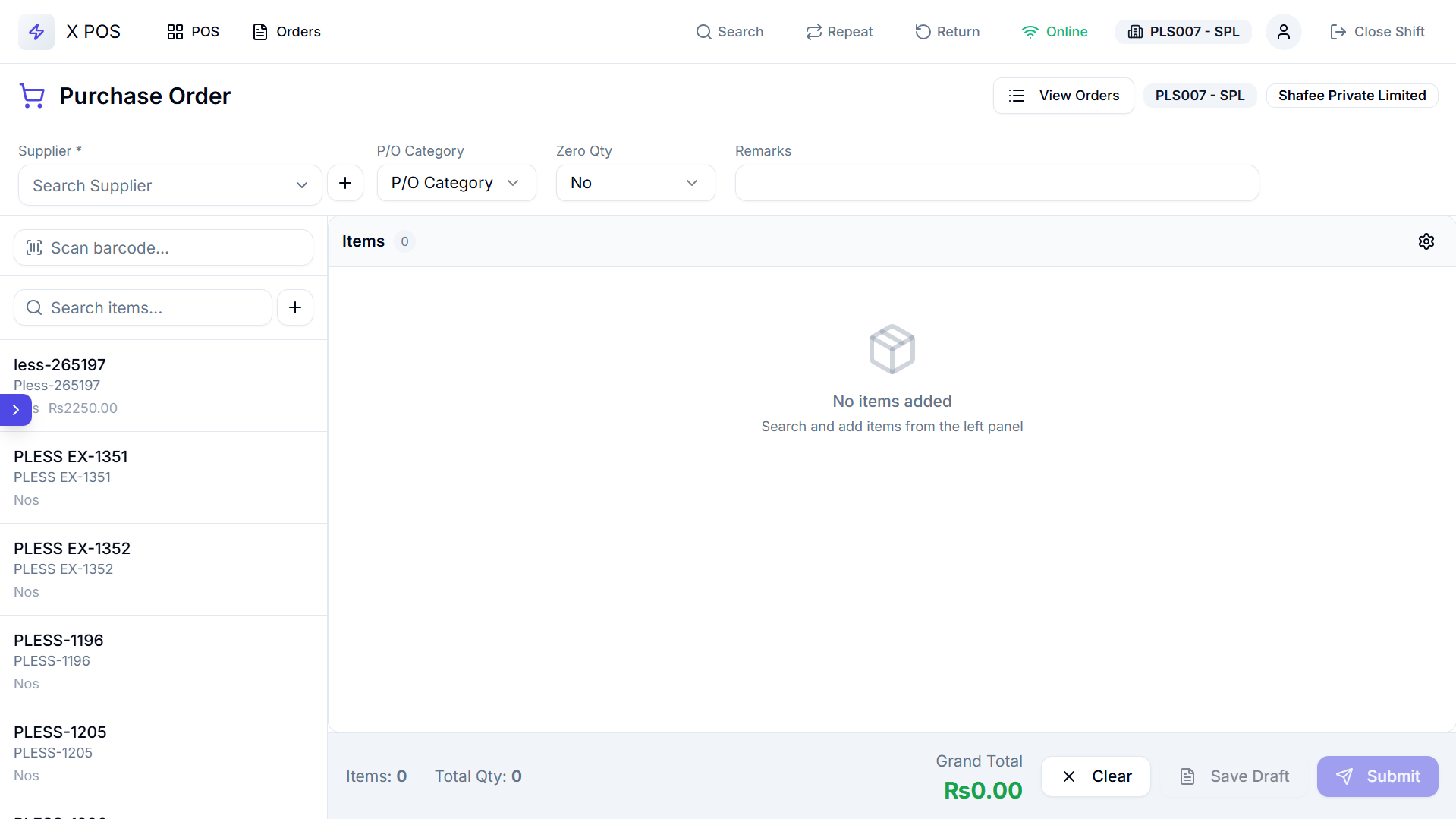
Purchase Order Form
Header Fields (6-8 column grid)
| Field | Description |
|---|---|
| Supplier | Link field to select supplier (with +New button for inline creation) |
| P/O Category | Category dropdown |
| Get Items | Button to fetch items based on category + supplier (appears when both are selected) |
| Zero Qty | Toggle to include zero-quantity items |
| Remarks | Notes spanning 3 columns |
Item Sidebar (280px)
The left sidebar provides item discovery:
- Barcode Scanner — Scan barcodes to add items
- Green ring flash on successful scan
- Red ring flash on error
- Audio feedback support
- Item Search — Search box with debounce (300ms)
- +New button to create items inline (if permitted)
- Scrollable Item List — Click any item to add it to the PO table
- Items highlight on hover
- Arrow key navigation supported
Main Items Table
A full-featured editable table with these columns:
| Column | Description |
|---|---|
| Item Name | Product name |
| Stock in Hand | Current warehouse stock (refreshable) |
| Transit Stock | Stock currently in transit |
| Required Packs | Number of packs needed |
| UOM | Unit of measurement (editable dropdown from item UOMs) |
| Pack Units | Units per pack |
| Rate | Purchase rate per unit |
| Discount % | Discount percentage |
| Item Group | Item classification group |
| Amount | Line total |
Table Operations
| Action | Description |
|---|---|
| Edit Cell | Click any editable cell to modify values |
| Delete Row | Remove an item from the PO |
| Delete Selected | Bulk delete checked rows |
| Duplicate Row | Clone an item row |
| Move Row | Reorder items up/down |
| Refresh Stock | Refresh stock quantities for all items |
Footer
- Grand Total — Sum of all item amounts
- Item Count — Number of unique items
- Qty Count — Total quantity across all items
- Action Buttons:
- Clear — Remove all items
- Save Draft — Save as local draft
- Submit — Create the purchase order in ERPNext
Barcode Scanner in PO View
The PO view has its own barcode scanner with:
- Visual feedback (green/red ring flash, 600ms duration)
- Auto-focus after scan
- Paste event handling for clipboard scans
- Audio feedback on success/error
Purchase Order List
Accessing the PO List
- Click Purchase Orders in the Sidebar
- Press Alt+3 or navigate via sidebar
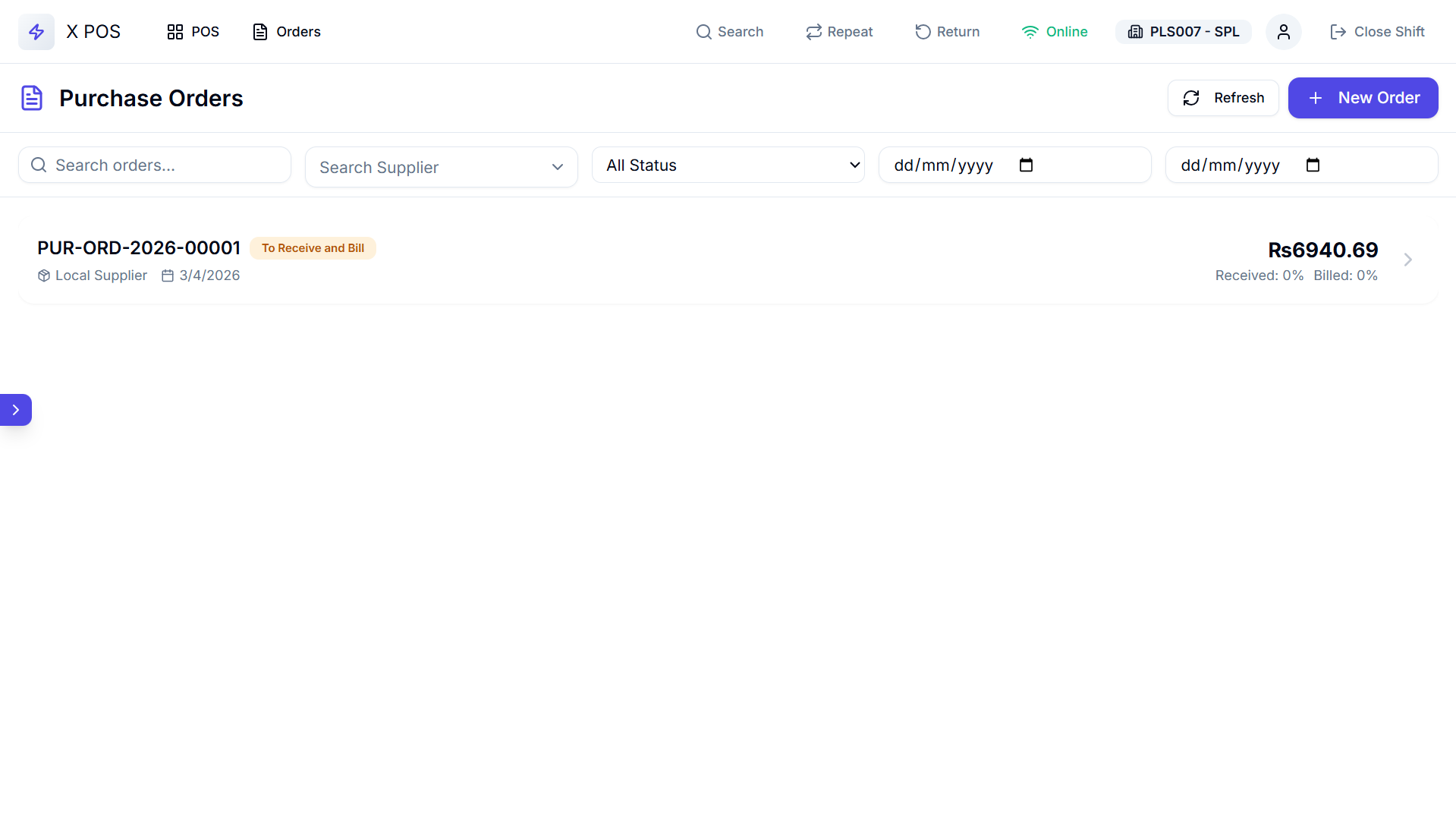
Layout
Header
- Title — "Purchase Orders"
- Refresh Button — Reload orders
- + New Order — Create a new PO
Filters (5 columns)
| Filter | Description |
|---|---|
| Search | Search by PO name or supplier name |
| Supplier | Link field filter |
| Status | All Status, Draft, To Receive and Bill, To Bill, To Receive, Completed, Cancelled |
| From Date | Start date filter |
| To Date | End date filter |
Drafts Panel (Left sidebar, 280px)
Shows locally saved draft purchase orders:
- Header — "Drafts (count)"
- Draft Cards — Each showing supplier name, modified date, item count
- Edit Button — Load draft back into the PO form
- Delete Button — Remove draft
Orders List (Main area)
Each purchase order card shows:
- PO Name — Purchase order ID
- Status Badge — Color-coded:
- 🟢 Green — Completed
- ⚫ Gray — Draft
- 🟡 Amber — To Receive / To Bill / To Receive and Bill
- 🔴 Red — Cancelled
- Supplier Name
- Transaction Date
- Grand Total
- Received % — Percentage of ordered items received
- Billed % — Percentage of ordered items invoiced
PO Detail Modal
Click an order card to view full details:
- Complete order information
- Items table with quantities, rates, received/pending
- Edit Button — Load order into edit mode
- Close Button — Dismiss the modal
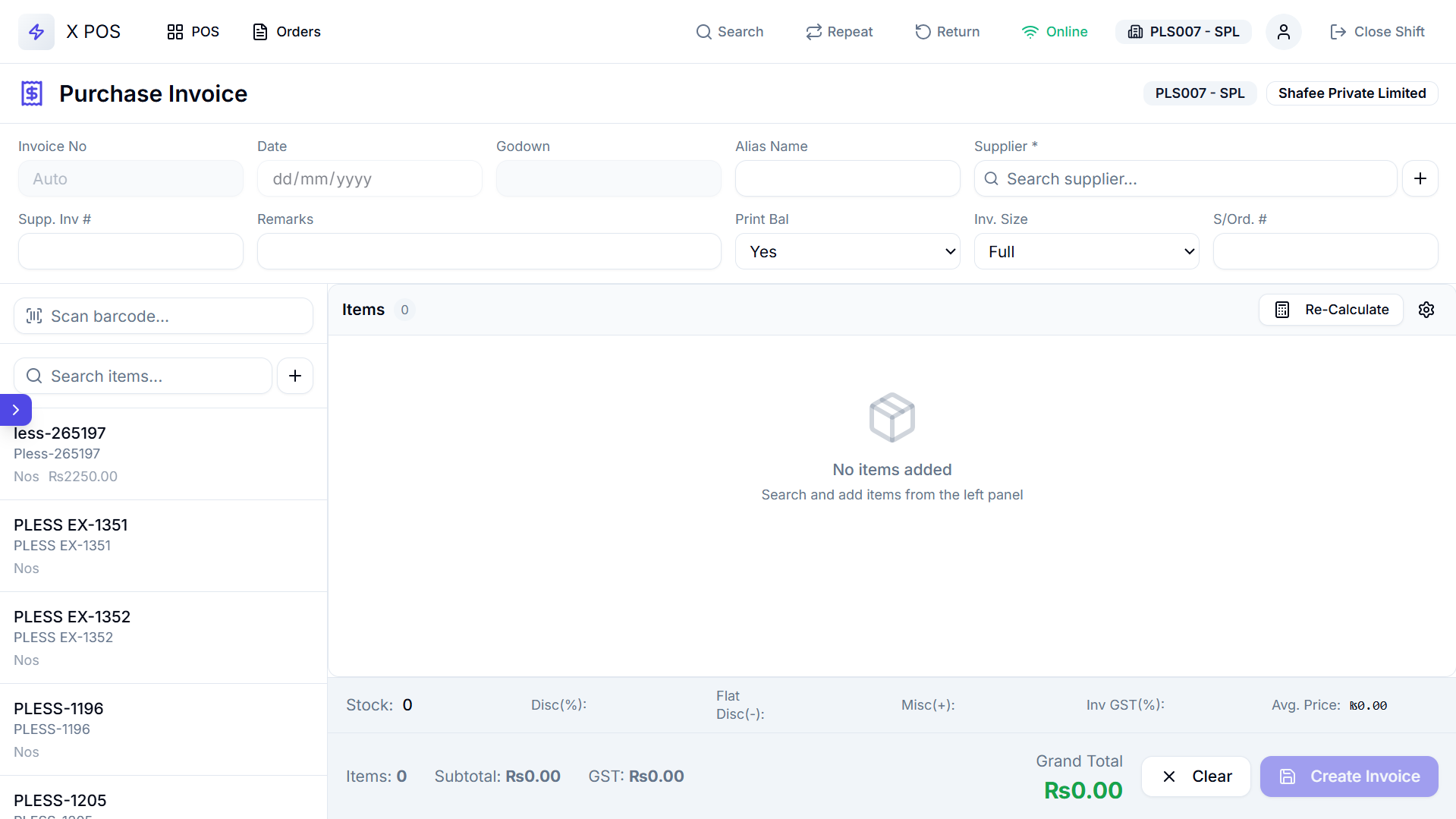
Purchase Invoice
Accessing Purchase Invoice
- Click Purchase Invoice in the Sidebar
- Press Alt+4
Invoice Header
| Field | Description |
|---|---|
| Invoice No | Auto-generated (disabled) |
| Date | Auto-set (disabled) |
| Warehouse | Warehouse (auto-filled, disabled) |
| Alias Name | Editable alias |
| Supplier | Supplier selection with +New button |
Additional Header Fields
| Field | Description |
|---|---|
| Supplier Invoice # | Vendor's invoice reference |
| Remarks | Additional notes |
| Print Bal | Yes/No toggle |
| Inv. Size | Full/Half invoice size |
| Sale Order # | Related sale order reference |
Items Table
The Purchase Invoice has an advanced table with margin analysis:
| Column | Description |
|---|---|
| Item Name | Product name |
| Batch No | Batch number |
| Expiry Date | Batch expiry |
| Qty | Quantity received |
| Bonus Qty | Free/bonus quantity |
| Rate | Unit purchase rate |
| Discount % | Discount percentage |
| Discount Amount | Calculated discount |
| Value Ex Tax | Value excluding tax |
| Total Exec. Tax | Total excluding tax |
| GST % | Tax percentage |
| GST Value | Calculated tax amount |
| Total Inc Tax | Total including tax |
| Sale Price | Selling price for margin calculation |
| Margin % | Profit margin |
Financial Calculations
| Summary Line | Formula |
|---|---|
| Subtotal | Sum of all items' value excluding tax |
| Total GST | Sum of all GST values |
| Invoice GST | Additional invoice-level GST |
| Stock Discount % | Overall stock discount |
| Flat Discount | Fixed discount amount |
| Misc. Charges | Additional miscellaneous charges |
| Total Qty | Sum of qty + Bonus Qty |
| Avg Price | Total cost ÷ Total qty |
Table Operations
Same as Purchase Order: edit cells, delete, duplicate, move, recalculate.
Submission
Click "Submit" to create both:
- Purchase Invoice in ERPNext
- Purchase Receipt (if applicable) for stock update
Stock Receiving
Accessing Stock Receiving
- Click Stock Receiving in the Sidebar
- Press Alt+5
- Or use the Receive tab in the Purchase View
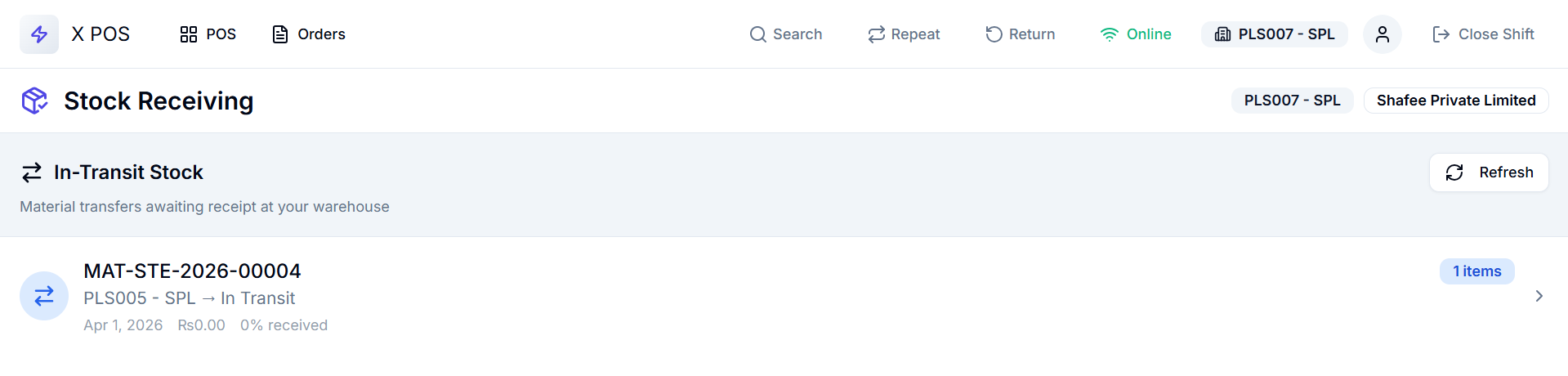
Purpose
Stock Receiving allows you to:
- Receive incoming shipments against purchase orders
- Verify quantities against ordered amounts
- Record batch numbers and expiry dates for incoming stock
- Reconcile received stock with transit stock
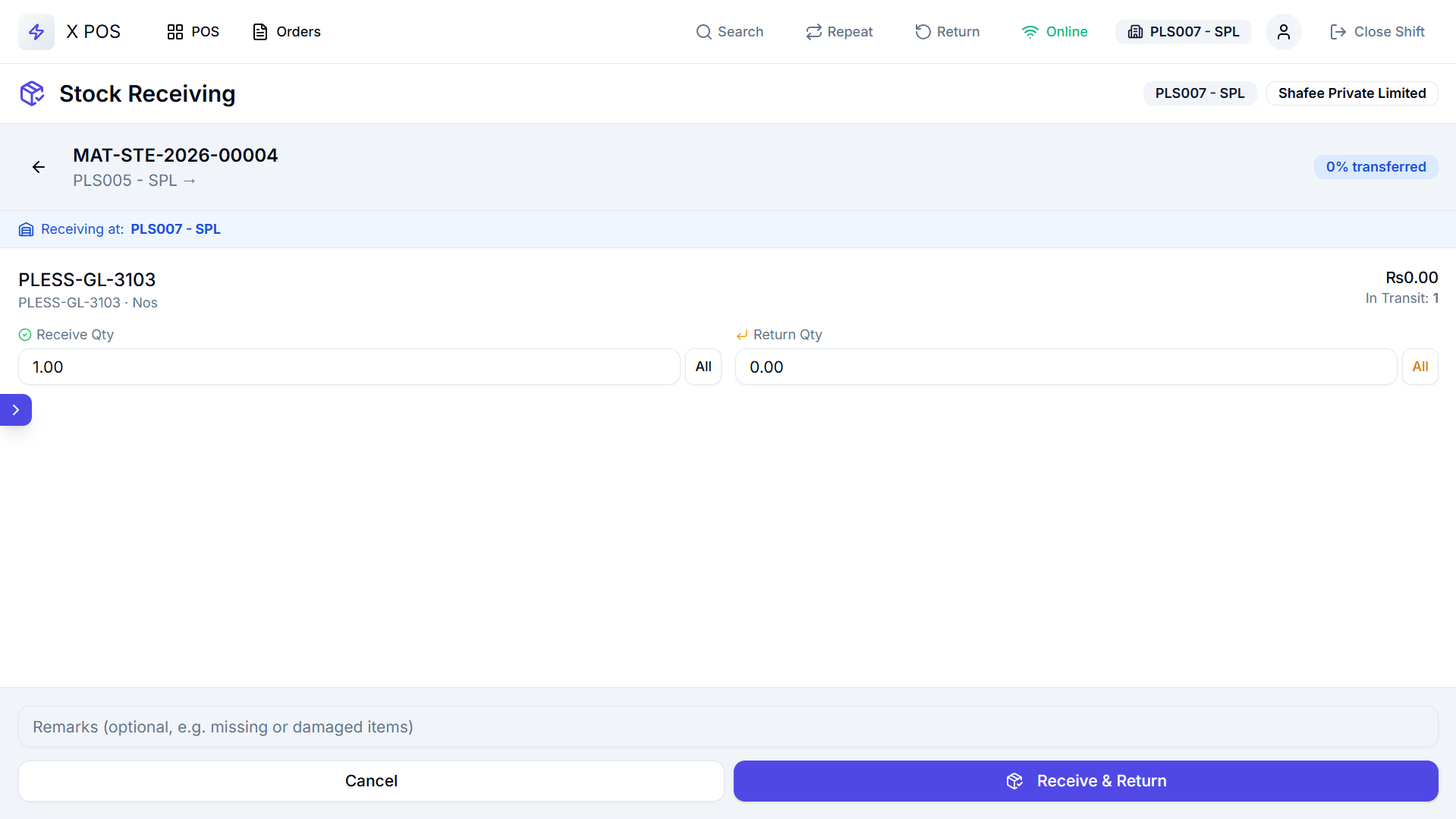
Stock Receiving Component
The Stock Receiving component (used in both the dedicated view and the Purchase View tab) handles:
- Pending receipt items from purchase orders
- In-transit stock entries
- Quantity verification
- Batch and serial tracking for incoming items
Draft Management
Purchase Orders support local draft saving for work-in-progress orders:
Saving a Draft
- Fill in the PO form partially
- Click "Save Draft"
- The PO data is saved locally (cache)
- A success toast confirms the save
Loading a Draft
- Open the Purchase Order List view
- Find the draft in the Drafts panel (left sidebar)
- Click "Edit" to load it back into the PO form
- Continue editing or submit
Deleting a Draft
Click the Delete button on any draft card to permanently remove it.
Draft Data Persistence
- Drafts include: supplier, items, quantities, rates, PO metadata
- Drafts persist across sessions (cache)
- Drafts are separate from server-side ERPNext documents