X POS provides a comprehensive set of keyboard shortcuts for fast, mouse-free operation. Shortcuts let cashiers process sales, navigate between screens, and manage shifts without touching the mouse.
Viewing Shortcuts
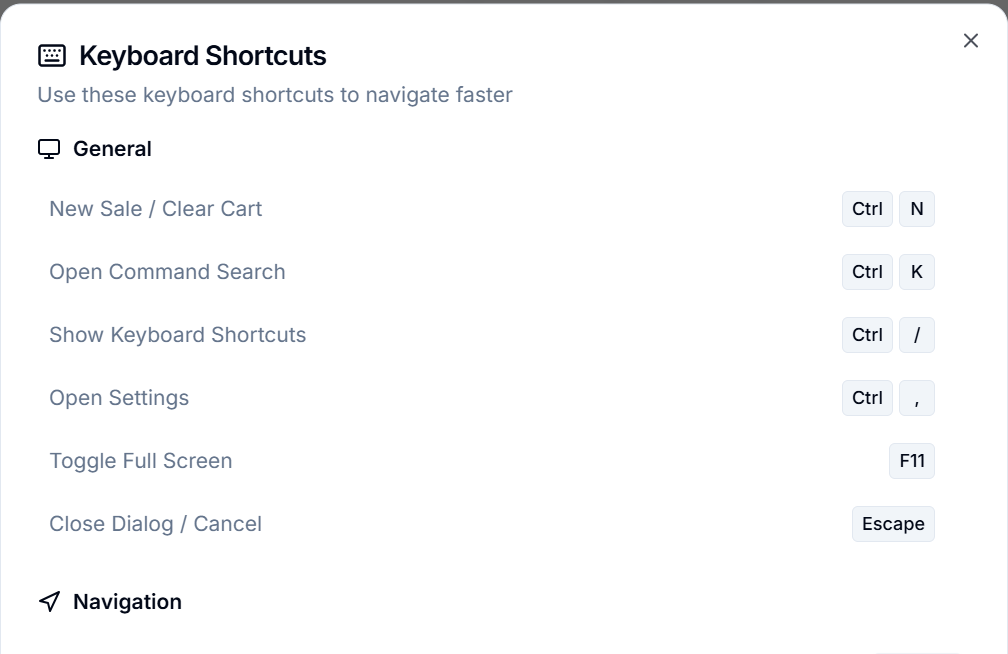
- Press Ctrl + / to open the Keyboard Shortcuts dialog at any time
- The dialog shows all available shortcuts organized by category
How Shortcuts Work
Global vs Contextual
- Global shortcuts work everywhere in the app, even when an input field is focused
- Contextual shortcuts only work when no input, text-area, or select element is focused
Modifier Key Notation
| Symbol | Key |
|---|---|
| Ctrl | Control key (or ⌘ Command on Mac) |
| Alt | Alt key (or ⌥ Option on Mac) |
| Shift | Shift key |
General
| Shortcut | Action | Global |
|---|---|---|
| Ctrl + N | Start a new sale / Clear the cart | ✓ |
| Ctrl + K | Open Command Search palette | ✓ |
| Ctrl + / | Show this Keyboard Shortcuts dialog | ✓ |
| Ctrl + , | Open Settings (Electron only) | ✓ |
| F11 | Toggle full-screen mode | ✓ |
| Escape | Close the currently open dialog | ✓ |
New Sale (Ctrl + N)
Clears the current cart, resets the customer selection, and prepares the POS for a fresh transaction. If there are unsaved items in the cart, those items are discarded.
Command Search (Ctrl + K)
Opens a search palette where you can:
- Search for items by name, code, or barcode
- Search for customers
- Navigate to any view
- Execute commands (e.g., Open Shift, Close Shift)
- Access recent orders
See the POS Interface chapter for full details on Command Search.
Navigation
| Shortcut | Action | Global |
|---|---|---|
| Alt + 1 | Go to POS (main selling screen) | ✓ |
| Alt + 2 | Go to Orders (order history) | ✓ |
| Alt + 3 | Go to Purchase Orders | ✓ |
| Alt + 4 | Go to Purchase Invoices | ✓ |
| Alt + 5 | Go to Stock Receiving | ✓ |
| Alt + 6 | Go to Expenses | ✓ |
| Alt + 7 | Go to Bank Drops | ✓ |
| Alt + 8 | Go to Barcode Printer | ✓ |
These shortcuts work from any screen. Press Alt + a number to instantly switch views.
POS Actions
| Shortcut | Action | Global |
|---|---|---|
| F4 | Open Payment Dialog (process payment) | ✓ |
| F5 | Toggle item view between Grid and List mode | ✓ |
| F6 | Focus the Customer Select field | ✓ |
| F8 | Toggle the Held / Draft Invoices panel | ✓ |
| Ctrl + G | Repeat the last invoice | — |
| Ctrl + R | Start a return (opens Return Dialog) | — |
| Ctrl + P | Print the last receipt | — |
| Ctrl + D | Apply a discount to the cart | — |
| Ctrl + H | Hold / park the current invoice as a draft | — |
Process Payment (F4)
Opens the Payment Dialog with the current cart. Validates that there are items in the cart and a customer is selected (if required).
Toggle Item View (F5)
Switches between Grid view (item cards with images) and List view (compact rows with stock information).
Select Customer (F6)
Focuses the customer search dropdown so you can start typing a customer name immediately.
Held Invoices (F8)
Opens or closes the Draft Invoice panel, showing all parked invoices that can be resumed.
Repeat Invoice (Ctrl + G)
Opens the Repeat Invoice dialog, pre-filling the cart with items from the most recent completed invoice.
Return Invoice (Ctrl + R)
Opens the Return Dialog where you can search for a previous invoice and initiate a return.
Print Last Receipt (Ctrl + P)
Reprints the receipt for the most recently completed invoice.
Apply Discount (Ctrl + D)
Opens the discount input in the Cart Summary section.
Hold Invoice (Ctrl + H)
Saves the current cart as a draft invoice that can be resumed later. The items and customer are preserved.
Item Selection
These shortcuts work when browsing items in the POS view:
| Shortcut | Action | Global |
|---|---|---|
| ↑ / ↓ | Navigate through item search results | — |
| Enter | Select the highlighted item / Add to cart | — |
| Type any letter | Start searching (focuses the search bar) | — |
Keyboard Item Browsing
When the item grid or list is visible, pressing arrow keys highlights items. Pressing Enter adds the highlighted item to the cart. Typing any letter automatically focuses the search bar.
Cart Actions
| Shortcut | Action | Global |
|---|---|---|
| Delete | Remove the last item from the cart | — |
| Ctrl + Delete | Clear all items from the cart | — |
| + / - | Increase / decrease quantity of selected item | — |
Remove Last Item (Delete)
Removes the most recently added item from the cart. Only works when no input field is focused.
Clear Cart (Ctrl + Delete)
Removes all items from the cart. This does not ask for confirmation.
Adjust Quantity (+ / -)
When an item in the cart is selected, pressing + or - adjusts its quantity by 1.
Shift Management
| Shortcut | Action | Global |
|---|---|---|
| Ctrl + Shift + O | Close the current shift | — |
| Ctrl + E | Record a cash expense | — |
| Ctrl + Shift + D | Record a cash deposit | — |
Close Shift (Ctrl + Shift + O)
Opens the Closing Dialog where you reconcile cash and close the current POS shift.
Cash Expense (Ctrl + E)
Opens the Cash Movement dialog pre-set to "Expense" mode for recording cash taken out of the register.
Cash Deposit (Ctrl + Shift + D)
Opens the Cash Movement dialog pre-set to "Deposit" mode for recording cash added to the register.
Data Sync (Electron Only)
| Shortcut | Action | Global |
|---|---|---|
| Ctrl + Shift + S | Trigger a manual sync with the server | — |
| Ctrl + Shift + R | Clear cached data | ✓ |
Manual Sync (Ctrl + Shift + S)
Forces an immediate synchronization of pending invoices and refreshes cached data from the server. Only available in Electron desktop mode.
Clear Cached Data (Ctrl + Shift + R)
Clears the locally cached item and customer data, forcing a fresh download on the next sync cycle.