Offers, Coupons & Promotions
X POS includes a comprehensive promotional system with POS Offers, Coupon Codes, Gift Cards, and integration with ERPNext's Promotional Scheme.
POS Offers
POS Offers are the primary promotional mechanism in X POS. They define automatic or coupon-based discounts and free product rules.
Creating a POS Offer
Navigate to POS Offer in your ERPNext instance and click + Add POS Offer.
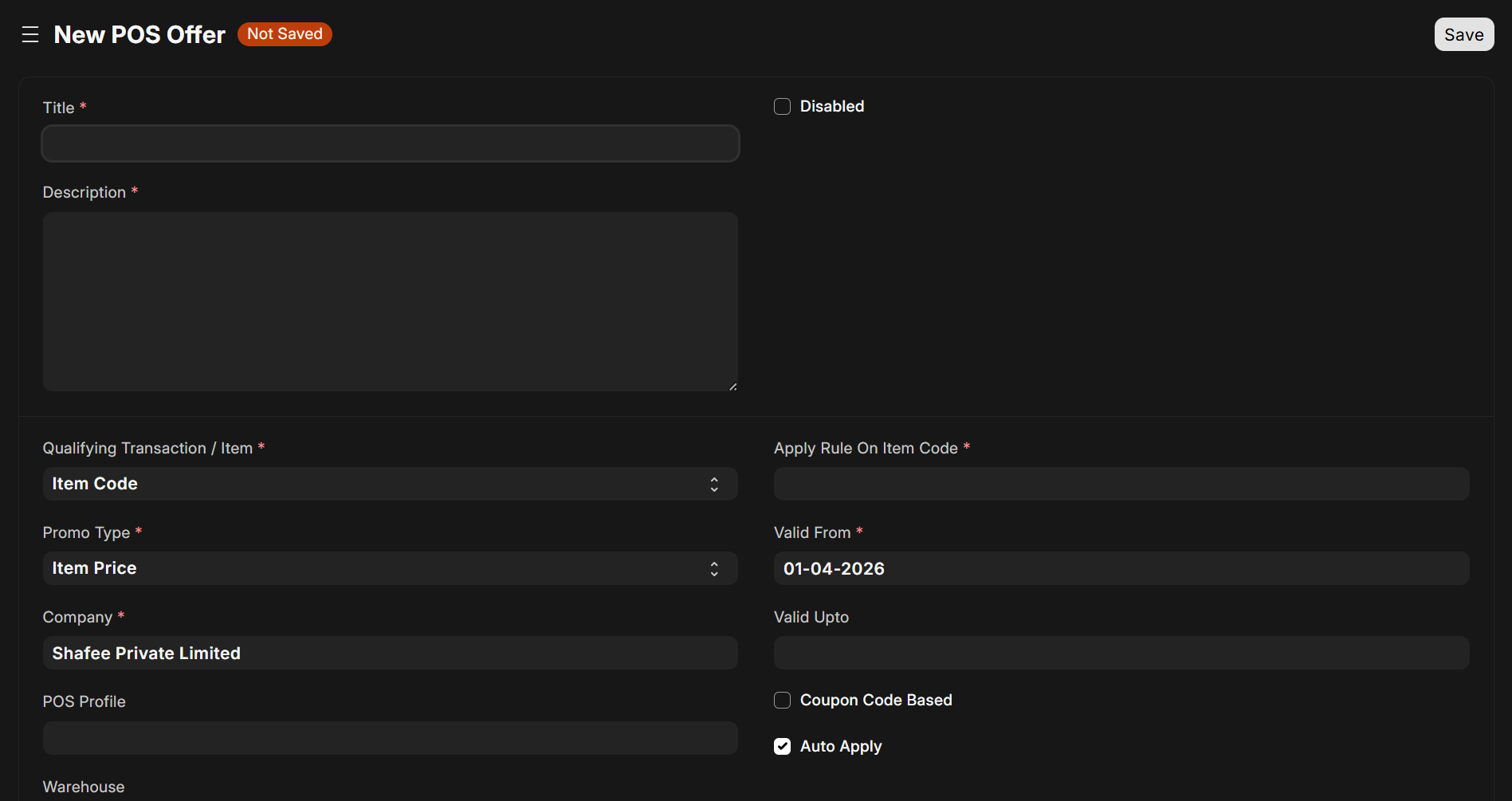
POS Offer Fields
| Field | Type | Description |
|---|---|---|
| Title | Data | Unique name for this offer |
| Description | Small Text | Description shown to cashiers |
| Disable | Check | Temporarily disable the offer |
| Company | Link | Company this offer applies to |
| POS Profile | Link | Specific POS Profile (optional, leave blank for all profiles) |
| Warehouse | Link | Specific warehouse (optional) |
Apply On — What Triggers the Offer
| Apply On | Description |
|---|---|
| Item Code | Offer applies when a specific item is in the cart |
| Item Group | Offer applies when any item from a group is in the cart |
| Brand | Offer applies when any item from a brand is in the cart |
| Transaction | Offer applies based on the overall transaction amount |
Offer Type — What the Customer Gets
| Offer Type | Description |
|---|---|
| Item Price | Discount on the item price (percentage or fixed amount) |
| Give Product | Free product/item added to the cart |
| Grand Total | Discount on the overall invoice total |
| Loyalty Point | Bonus loyalty points awarded |
Conditions
| Field | Description |
|---|---|
| Min Qty / Max Qty | Quantity range for the offer to apply (e.g., buy 3 or more) |
| Min Amount / Max Amount | Amount range for the offer to apply |
| Valid From / Valid UpTo | Date range for offer validity |
Discount Configuration
For price/total discount offers:
| Field | Description |
|---|---|
| Discount Type | "Percentage" or "Amount" |
| Rate | Fixed price to set (for "Item Price" offer) |
| Discount Percentage | Percentage off |
| Discount Amount | Fixed amount off |
Auto vs. Coupon-Based
| Field | Description |
|---|---|
| Auto | Default: Yes. Automatically applied when conditions are met |
| Coupon Based | If checked, the offer requires a coupon code to activate |
Give Product Configuration (For "Give Product" Offers)
When the offer type is "Give Product":
| Field | Description |
|---|---|
| Given Item | The free item to add |
| Given Qty | Quantity of the free item |
| Replace | Whether the free item replaces the trigger item |
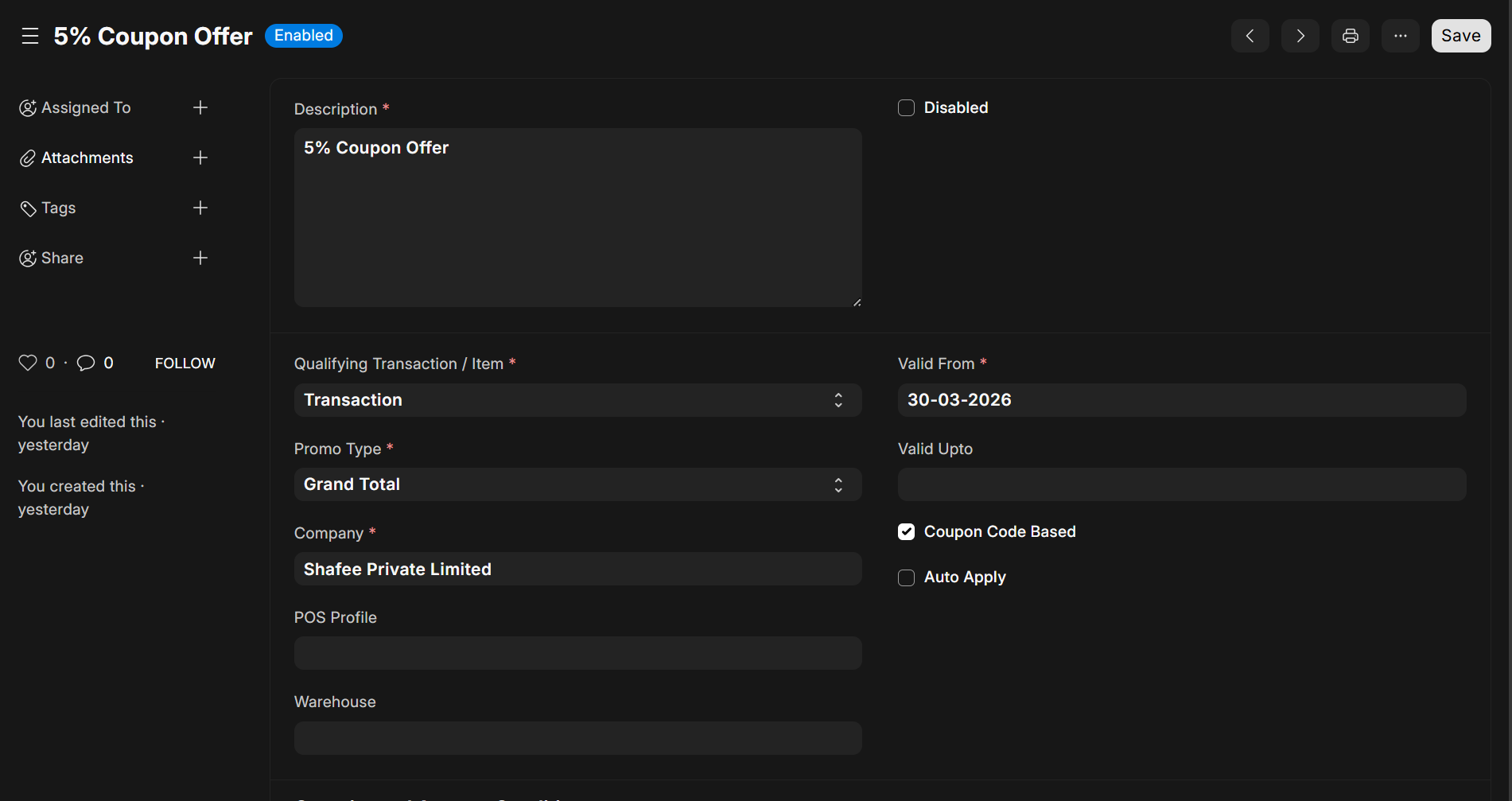
POS Coupons
Coupons are codes that customers can present to activate coupon-based offers.
Creating a POS Coupon
Navigate to POS Coupon in your ERPNext instance.
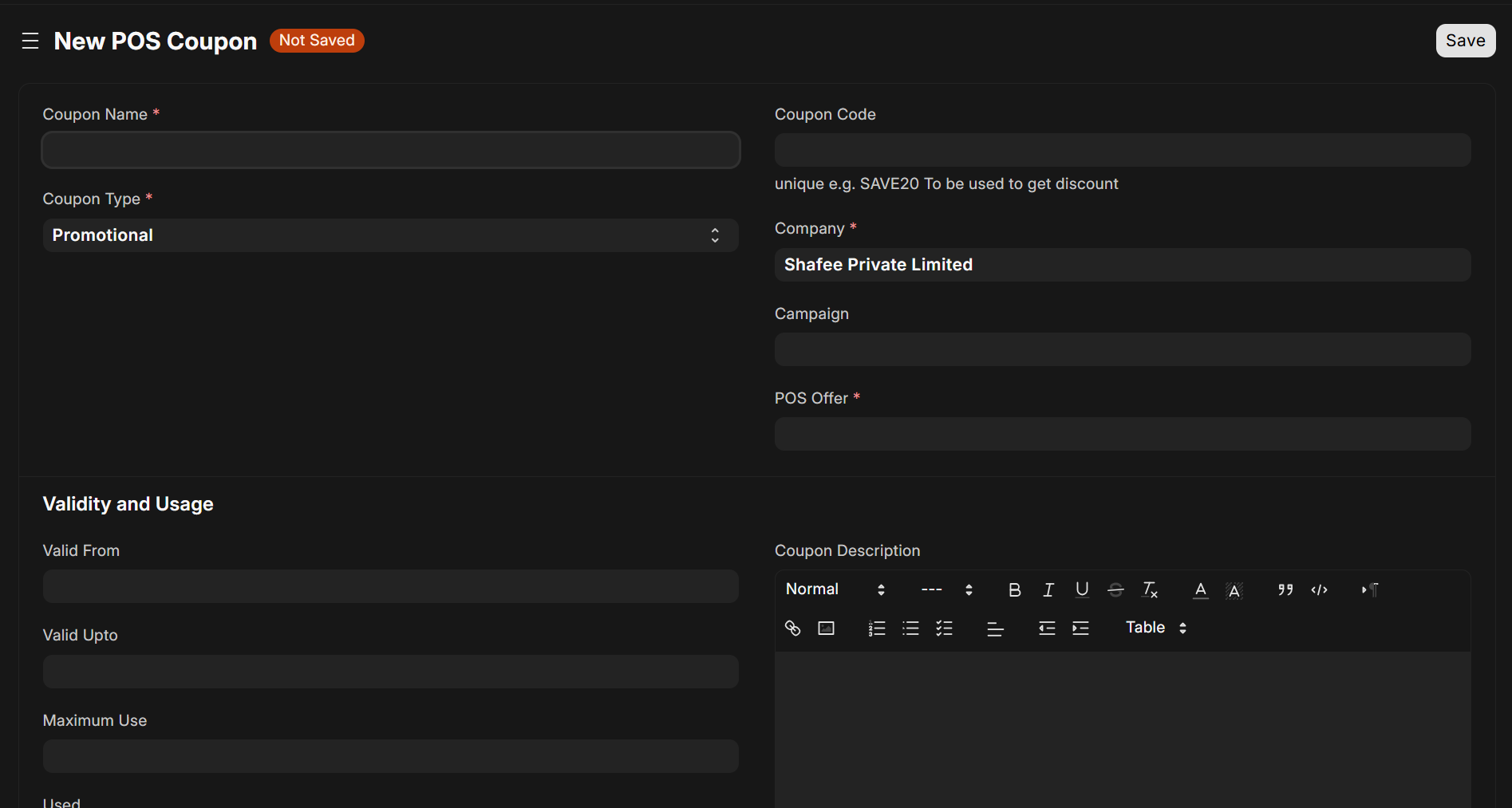
Coupon Fields
| Field | Type | Description |
|---|---|---|
| Coupon Name | Data | Human-readable name (also used as auto-name) |
| Coupon Type | Select | "Promotional" or "Gift Card" |
| Coupon Code | Data | Unique code the customer enters (auto-generated if left blank) |
| Company | Link | Company this coupon belongs to |
| POS Offer | Link | The POS Offer this coupon activates (must be coupon-based) |
| Campaign | Link | Marketing campaign (optional) |
| Valid From / Valid UpTo | Date | Validity period |
| Maximum Use | Int | Maximum number of times the coupon can be used (Promotional only) |
| Used | Int | Current usage count (auto-incremented) |
| One Use | Check | Limit to one use per customer |
Promotional Coupons
- Can be used by any customer
- Usage limited by
Maximum Usecount - Ideal for marketing campaigns and promotions
Gift Card Coupons
- Tied to a specific customer
- Customer's name, mobile, and email are fetched automatically
- Used count tracks redemption
- Ideal for store credit and gift cards
Coupon Validation Logic
When a coupon is entered in X POS, the backend validates:
- Coupon exists with matching company
- Coupon is not fully used up (
Used < Maximum Usefor Promotional) - Current date is within
Valid FromandValid Up-to - For Gift Cards: customer matches the coupon's customer
- For one-use coupons: customer hasn't already used it (checks submitted invoices)
If any check fails, an error message is returned to the POS.
Applying Coupons in X POS
Manual Coupon Entry
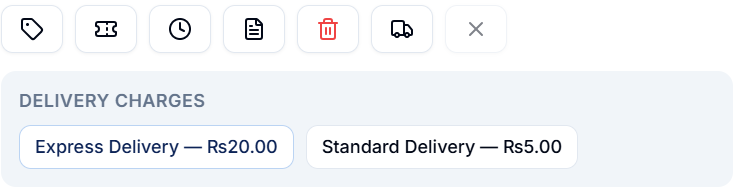
- In the Cart Summary, click the Coupon button (ticket icon)
- Enter the coupon code in the input field
- Click Apply
- If valid: the coupon and its linked offer are applied; a success message shows
- If invalid: an error message explains why (expired, used up, wrong customer, etc.)
Auto-Fetch Gift Coupons
If "Auto Fetch Coupons/Gifts" is enabled in POS Profile, the system automatically checks for available gift card coupons for the selected customer and can apply them.
Coupon in Invoice
When a coupon is applied:
- It's stored in the
Coupon Detailchild table of the invoice - On invoice submission, the coupon's
Usedcount is incremented - On invoice cancellation, the
Usedcount is decremented - The coupon code appears in the order details view
Promotional Scheme Integration
X POS also integrates with ERPNext's built-in Promotional Scheme feature. When fetching offers, the system:
- Loads all direct POS Offers
- Also loads applicable Promotional Schemes and converts them to the POS Offer format
- Product discount rules become "Give Product" offers
- Price discount rules become "Item Price" or "Grand Total" offers
- All converted offers are auto-applied
This means existing ERPNext Promotional Schemes work seamlessly in X POS.
Offer Evaluation Logic
When offers are active, the cart automatically evaluates them whenever items change:
Item-Level Offers
For each offer that applies to specific items (Item Code, Item Group, Brand):
- Check if the triggering conditions are met (min qty, min amount, date range)
- For Item Price offers: Calculate and apply the discount to matching items
- For Give Product offers: Add the free item to the cart with a special
Is Offerflag - For Loyalty Point offers: Track bonus points for award after submission
Transaction-Level Offers
For offers that apply to the entire transaction:
- Check if the transaction total meets the minimum amount
- For Grand Total offers: Apply the discount percentage to the invoice total
- The discount appears in the Cart Summary as "Offer Grand Total Discount"
Free Item Sync
When offers add free items to the cart:
- Free items are marked with
Is Offer = true - When offers are re-evaluated (after item changes), old free items are removed and new ones added
- Free items cannot be manually edited or removed (they're managed by the offer engine)
- When an offer is removed, its associated free items are also removed
Delivery Charges
X POS supports configurable delivery charges that can be added to transactions.
Setup
Delivery charges are configured as a child table on the POS Profile:
| Field | Description |
|---|---|
| Label | Display name (e.g., "Standard Delivery", "Express") |
| Default Rate | Standard delivery rate |
| Rate | Actual rate to charge |
| Shipping Account | Account for the delivery charge |
| Cost Center | Cost center for reporting |
Using Delivery Charges
- Click the Delivery button in the Cart Summary
- Available delivery charges are loaded and displayed
- Click a charge to apply it — the amount is added to the grand total
- Click the same charge again to remove it
- Delivery charges are not available in Return Mode
- If "Auto Set Delivery Charges" is enabled, the default charge is automatically applied