Barcode Label Printing
X POS includes a built-in barcode label generator and printer for creating product labels with barcodes, QR codes, and pricing information.
Accessing Barcode Printer
- Click Barcode Printer in the Sidebar
- Use the Tools section in the navigation
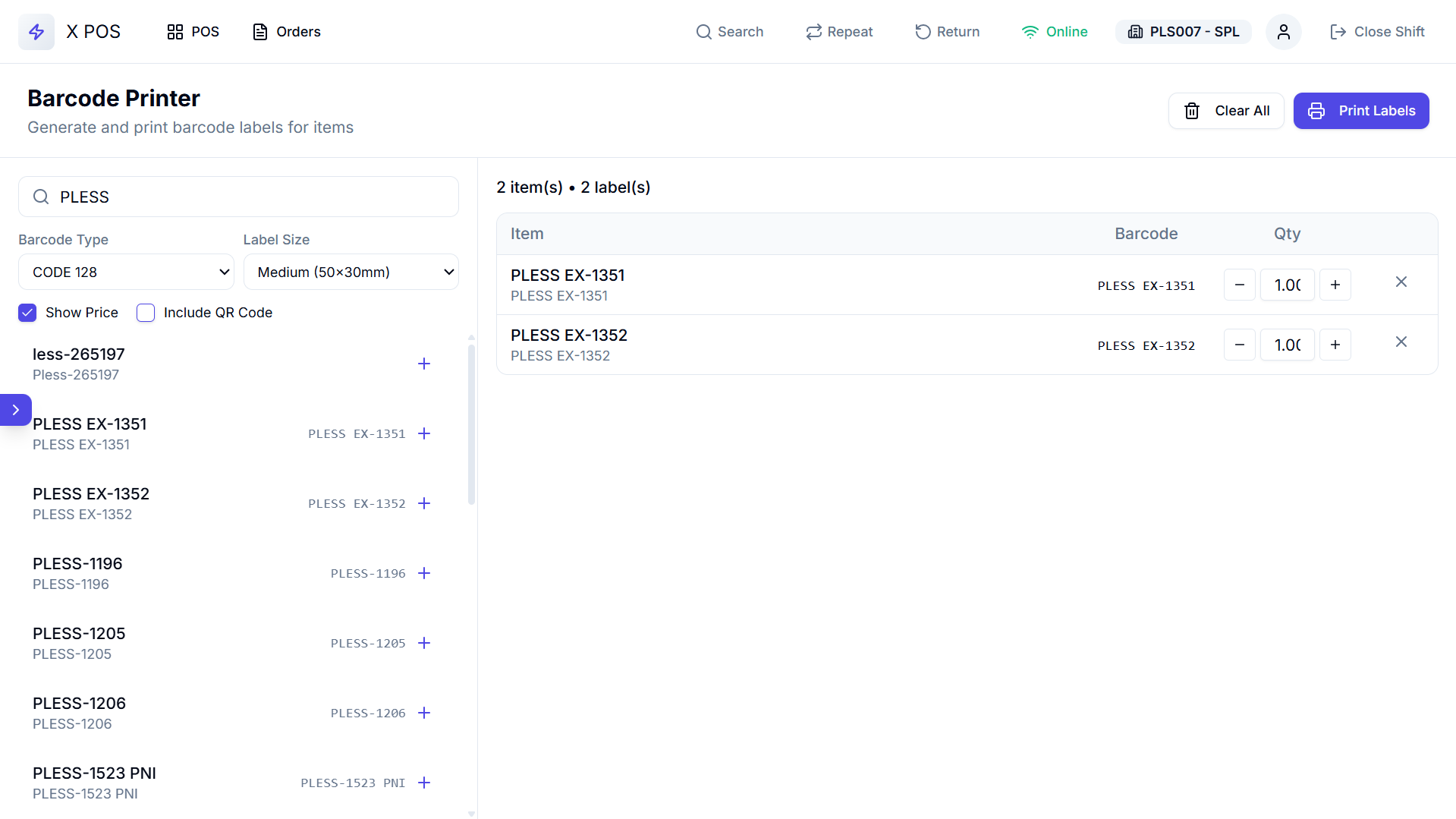
Layout
The Barcode Print view uses a two-panel layout:
Left Panel (420px) — Search & Configuration
Item Search
- Search Input — Search items by name, item code, or barcode
- Real-time search with 300ms debounce
- Search results appear as a dropdown list
- Click an item to add it to the print list
Barcode Configuration
| Setting | Options | Default | Description |
|---|---|---|---|
| Barcode Type | CODE 128, CODE 39, EAN-13, EAN-8, UPC-A, ITF | CODE 128 | The barcode symbology to use |
| Label Size | Small (38×25mm), Medium (50×30mm), Large (60×40mm) | Medium | Physical dimensions of the printed label |
| Show Price | Checkbox | On | Include the selling price on the label |
| Include QR Code | Checkbox | Off | Add a QR code alongside the barcode |
Right Panel — Items & Preview
Selected Items Table
| Column | Description |
|---|---|
| Item Name | Product name |
| Item Code | Product code |
| Barcode | Current barcode value |
| Quantity | Number of labels to print (editable with ± buttons) |
| Delete | Remove item from the list |
Quantity Controls
For each item:
- - button — Decrease label count (minimum 1)
- Numeric input — Direct quantity entry
- + button — Increase label count
Summary
- Total Items — Number of unique items selected
- Total Labels — Sum of all quantities (total labels to print)
Action Buttons
- Print Labels — Generate and print all labels
- Clear All — Remove all items from the list
Adding Items
By Search
- Type the item name, code, or barcode in the search input
- Click an item from the search results dropdown
- The item is added to the table with quantity 1
- If the item is already in the list, its quantity is incremented by 1
Multiple Items
Add multiple different items to create a batch of labels with different products.
Barcode Types
X POS supports these barcode symbology's:
| Type | Description | Use Case |
|---|---|---|
| CODE 128 | High-density alphanumeric barcode | General retail (most common) |
| CODE 39 | Alphanumeric, self-checking | Industrial, warehouse |
| EAN-13 | 13-digit European Article Number | International retail products |
| EAN-8 | 8-digit compact version of EAN | Small packages |
| UPC-A | 12-digit Universal Product Code | North American retail |
| ITF | Interleaved 2 of 5 | Outer cartons, shipping |
Label Sizes
| Size | Dimensions | Best For |
|---|---|---|
| Small | 38 × 25 mm | Jewelry, small items |
| Medium | 50 × 30 mm | Standard retail shelf labels |
| Large | 60 × 40 mm | Warehouse, bulk items |
Printing Labels
Print Process
- Configure barcode type and label size
- Add items and set quantities
- Click "Print Labels"
- The system:
a. Sends the item list to the server API
b. Server generates barcode images (as data URIs)
c. Server generates QR code images (if enabled)
d. Fetches pricing data
e. Returns label data with base64-encoded images - A print-optimized HTML page is generated with:
- CSS @page rules matching the selected label size
- One label per page break
- Centered, flexbox layout
- Each label repeated according to the quantity
- A new browser window opens with the print preview
- The browser's print dialog triggers automatically
- The window auto-closes after printing
What's on Each Label
| Element | Description | Condition |
|---|---|---|
| Item Name | Product name centered at top | Always |
| Barcode Image | Generated barcode in selected symbology | Always |
| Barcode Text | Human-readable barcode number below the barcode | Always |
| Price | Formatted price with currency symbol and UOM | If "Show Price" is enabled |
| QR Code | QR code image | If "Include QR Code" is enabled |
Screenshot Hint: Take a screenshot of a printed label showing the item name, barcode, barcode text, and price.
Print Settings
- The labels support dark mode printing with
-webkit-print-color-adjust: exact - Layout is centered with proper margins
- Dimensions are configured based on the selected label size
Last updated 4 months ago
Was this helpful?